Summary
- How It Works
- Save Your Design / View Saved Patterns
- Share Your Design
- Browse and Save Patterns from the Community
- Edit Saved Patterns
- How do I get more Crop Pattern Templates?
A first-of-its-kind feature in farming games, Crop Patterns combines knowledge, skill and failure into a potent mix of experimentation and discovery.
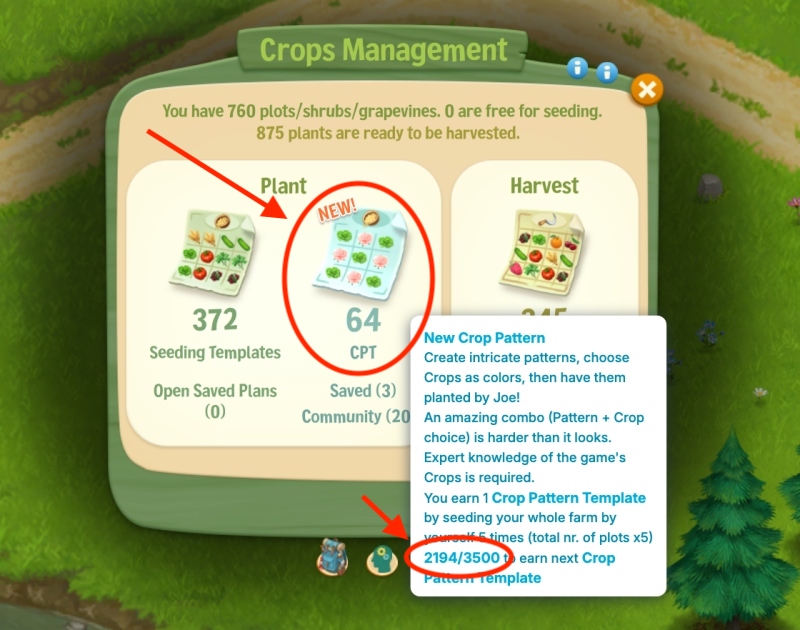
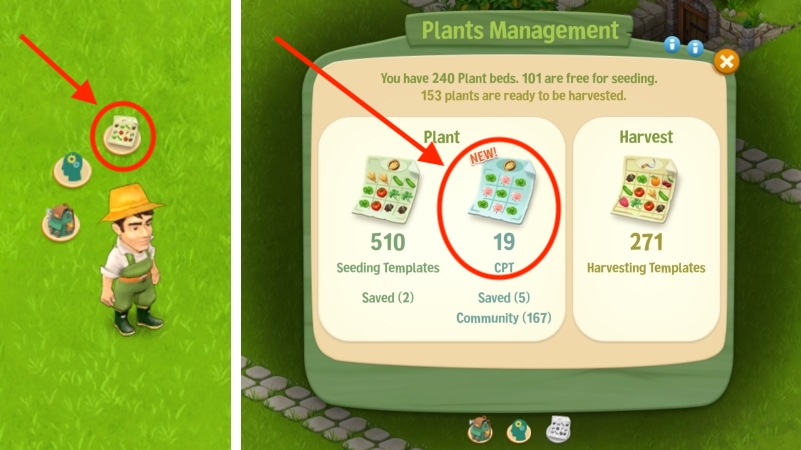
To open Crop Patterns, click on Joe’s Plant and Harvest menu, then on the new CPT Templates.
How It Works
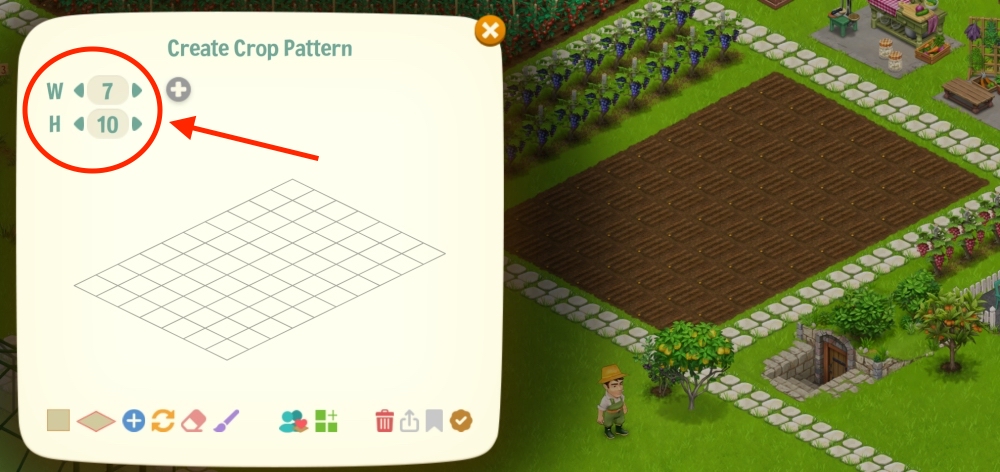
1. Choose the grid size – you can save multiple sizes to place on various areas of your farm. Make sure the plots are right next to each other, so not in Greenhouses.
Here we chose a 7×10 size so it matches the field we want to plant.
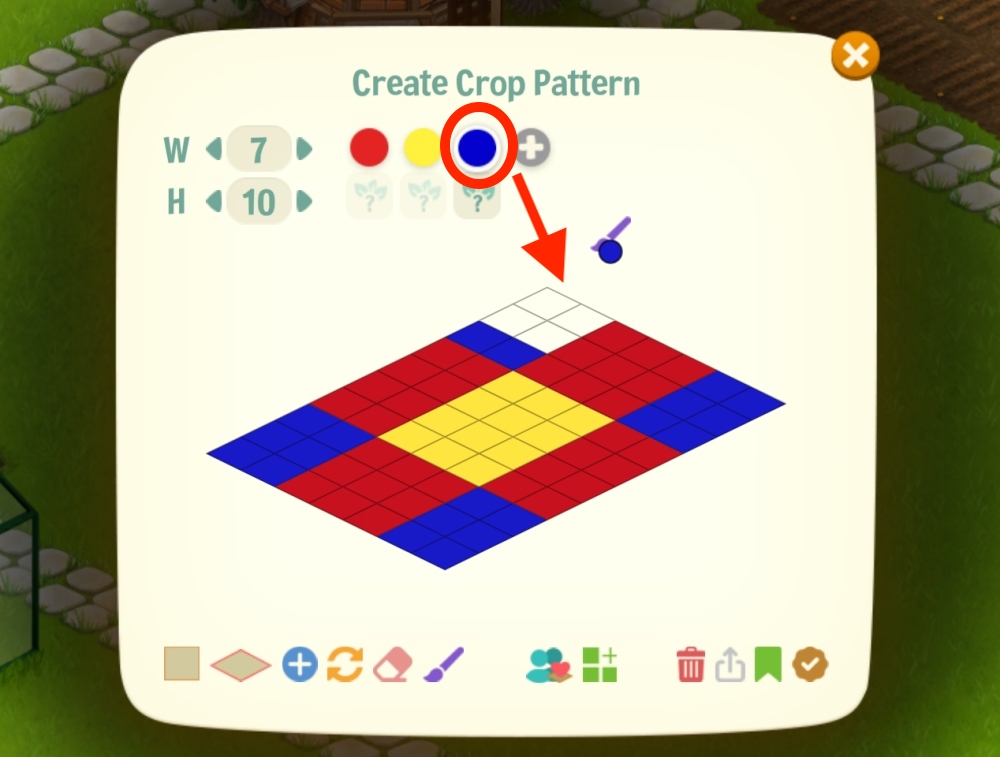
2. Choose the design colors – you can choose up to 8 colors for a design.
Click the Paintbrush icon at the bottom, choose a color, fill in the squares, repeat. To add another color, click the “+” sign. If you make a mistake, click the eraser icon at the bottom to clear a square.
3. Choose the crop for each color – here, the expert knowledge of the crops really comes in handy.
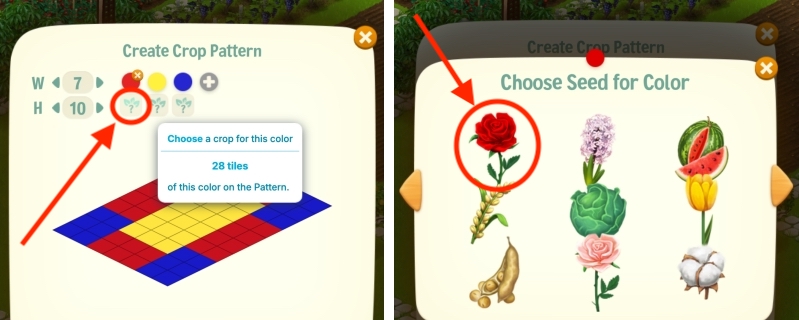
Click the question mark icon under each color and choose a crop.
Save the design (optional) – if you created a masterpiece, it’s best to save it. You can save up to 9 designs.
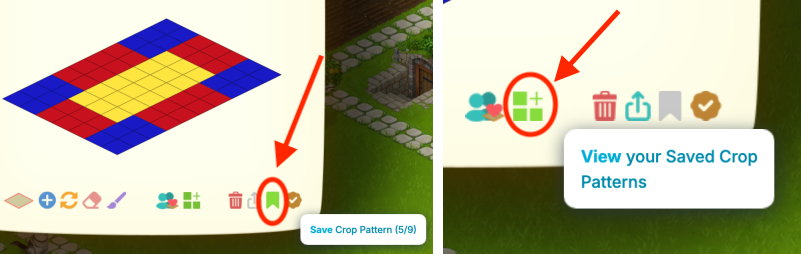
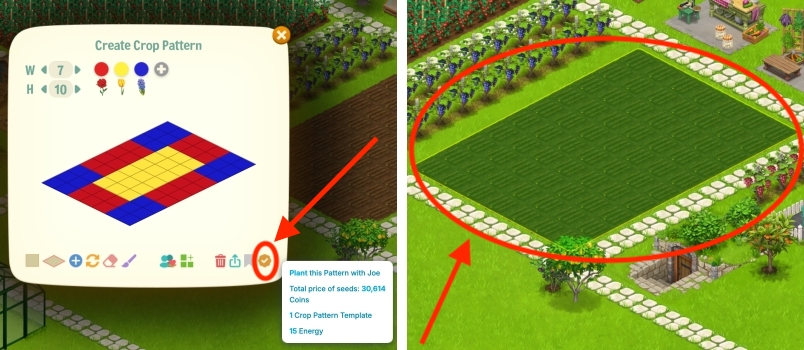
4. Click Plant – a grid of your selected size will appear, and you need to place it over a crop field with all crops next to each other, and Joe will plant that for you. Required Energy depends on the grid size, from 15 Energy to 40 Energy, for the biggest 25×25 grid.
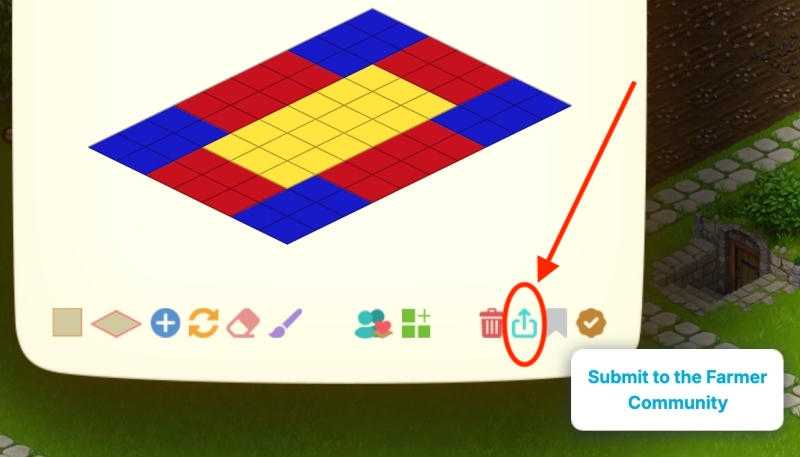
Share Your Design
If you think you nailed a design, you have the possibility to share it to the community, for instant fame and recognition of your knowledge and skills.
Browse and Save Patterns from the Community
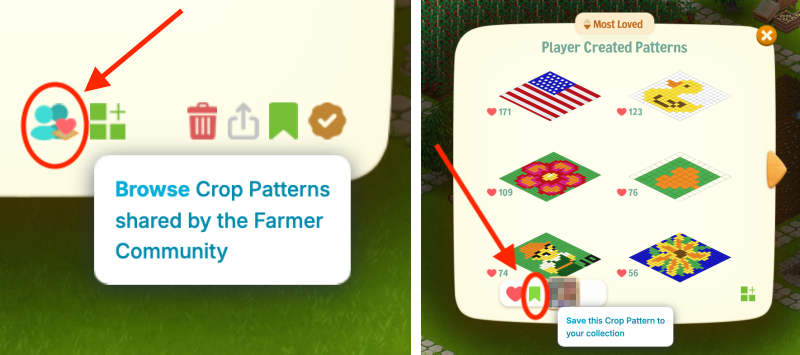
You can see what other Farmers have created, and save the Patterns you like.
Edit Saved Patterns
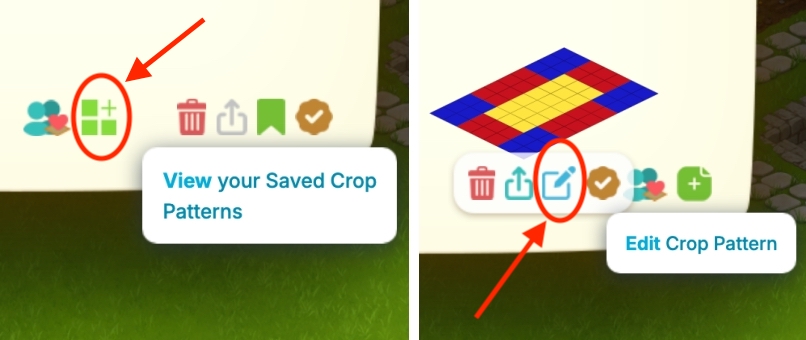
You can also edit the Patterns you’ve saved.
How do I get more Crop Pattern Templates?
You earn 1 Crop Pattern Template by seeding your whole farm by yourself 5 times (total nr. of plots x5).
You can hover over your Crop Pattern Templates to see your current status.